

Microsoft Planner -arvostelu: hyvät ja huonot puolet, ominaisuudet ja hinnoittelu
Microsoft Planner on erinomainen tehtävien automatisoinnissa ja projektinhallinnassa erityisesti Microsoft 365 -sovelluksia käyttäville tiimeille, sillä se tarjoaa toiminnallisuuden ja luotettavuuden yhdistelmän.

We review tools independently, and commissions help fund our testing. See our transparency policy, our methodology, or suggest a tool.
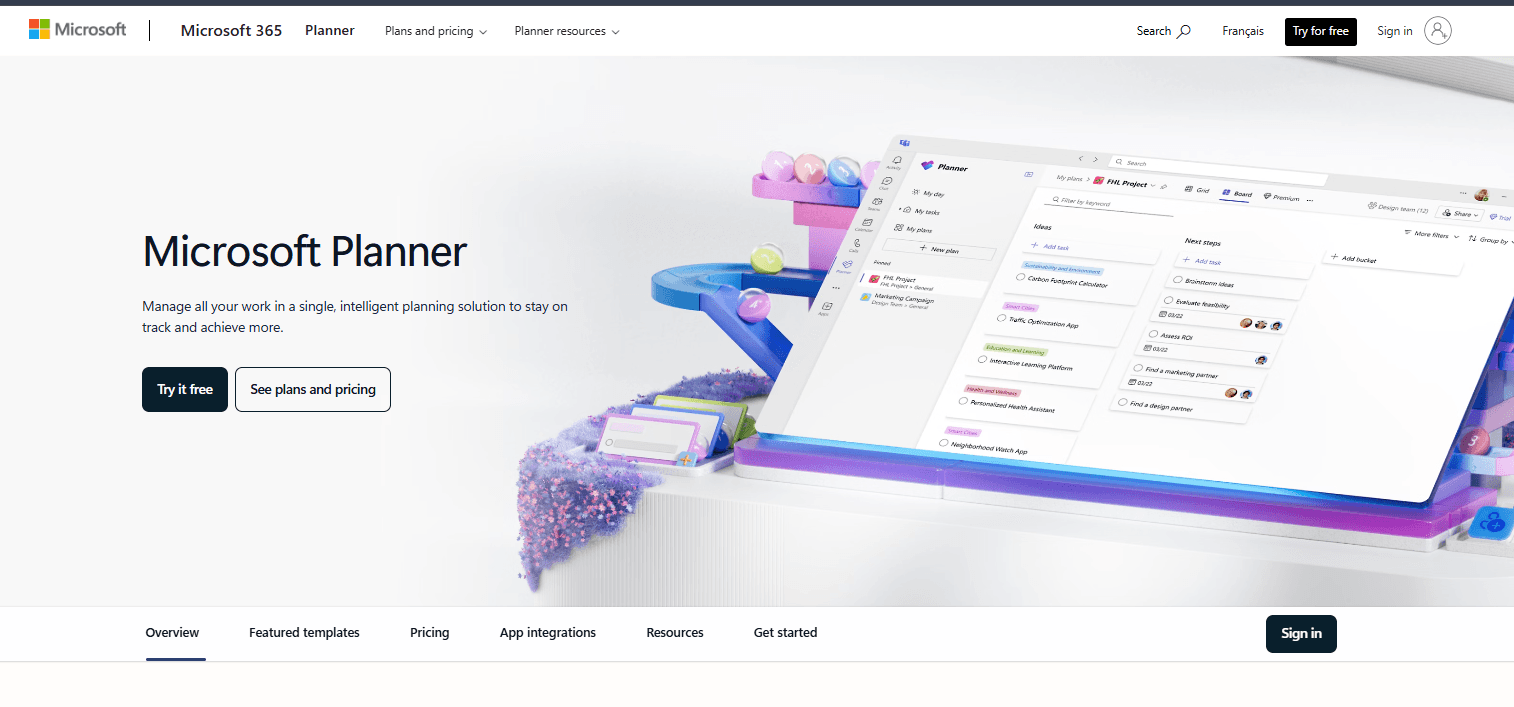
Microsoft Planner is an accounting and project management software built directly into Microsoft 365. It's a natural fit if your finance or operations team already works in Teams or Outlook and needs structured task tracking without adopting a standalone tool. I'd consider it over something like Asana if staying within the Microsoft 365 ecosystem is a priority—you get boards, task assignments, and due dates without adding a separate subscription or another login to manage.
Microsoft Planner Evaluation Summary
4.6/5
- From $10/user/month (billed annually)
- Free trial available
Miksi luottaa ohjelmistosuosituksiimme
6,700+
Reviews
20
Industry experts
16+
Evaluation factors
14
Years
Tiimimme on testannut ja arvioinut ohjelmistoja vuodesta 2012 lähtien. Talousjohtajina tiedämme itse, kuinka vaikeaa — ja tärkeää — oikean ohjelmiston valitseminen on.
Tätä opasta varten arvioimme työkaluja käytännön testauksen ja itsenäisen tutkimuksen avulla, pisteyttäen työkalut valintakriteeriemme perusteella.
Arvostelumme perustuvat inhimilliseen toimitukselliseen harkintaamme, eivät myyntipuheeseen.
Microsoft Planner Overview
In my opinion, Microsoft Planner is a solid choice if you're looking for task and project scheduling software that integrates well with other Microsoft tools. Its portfolio management features make it appealing for large enterprises, particularly those already using Microsoft products. However, its onboarding process and customer support could use improvement. While it may not offer the best value for money compared to competitors, such as monday.com and Asana, its integration capabilities and useful collaboration tools can justify the cost for those who need comprehensive project management. It's best suited for environments where detailed project tracking and resource management are priorities.
Pros
- You can efficiently track project timelines and resources.
- Your team benefits from detailed project planning features.
- It offers strong reporting capabilities for better decision-making.
Cons
- You might find the user interface difficult to navigate.
- Your team may face a steep learning curve during onboarding.
- It can be cumbersome to use for smaller projects.
Is Microsoft Planner Right For Your Needs?
Who Would be a Good Fit for Microsoft Planner?
Microsoft Planner is ideal for large enterprises and industries such as construction and IT where project management is complex. Your team can benefit from its detailed project timeline and planning features. It's also well-suited for departments focused on resource allocation and workflow management. If you work with Agile methodologies that can be carried out and monitored with a Kanban board, Microsoft Planner offers the necessary tools to keep your projects on track.
- Construction IndustryYou can benefit from detailed scheduling and resource management features that allow you to track project progress in real-time.
- IT DepartmentsYou’ll find its time tracking capabilities essential for complex tech projects.
- Large EnterprisesYour organization can customize its templates for managing large-scale projects.
- Financial Planning TeamsYou can integrate project timelines seamlessly with cost management requirements to meet budget planning goals.
- Project ManagersYou and your team could benefit from the detailed planning and visualization tools Microsoft Planner provides.
- Engineering FirmsMicrosoft Planner can help you track complex project details and resources efficiently.
Who Would be a Bad Fit for Microsoft Planner?
Microsoft Planner isn’t ideal for small businesses or startups with limited resources and simpler project requirements or those who want timesheet functionality. Your team might find it too complex and costly for simple project tasks. It's also not the best choice for teams that need quick onboarding and immediate results, as new users face a learning curve. Additionally, if your work involves creative projects, it might feel too rigid and structured for your needs.
- Small StartupsYou might find it too complex and expensive for your straightforward needs.
- Creative AgenciesYour work requires flexibility that Microsoft Planner doesn't easily offer.
- Non-Profit OrganizationsYour limited budget and resources make it a less practical choice.
- FreelancersYou might find it overwhelming for managing simple or solo projects.
- Retail OperationsYour focus on day-to-day operations doesn't align with its project-centric features.
How We Test & Score Tools
We’ve spent years building, refining, and improving our software testing and scoring system. The rubric is designed to capture the nuances of software selection and what makes a tool effective, focusing on critical aspects of the decision-making process.
Below, you can see exactly how our testing and scoring works across seven criteria. It allows us to provide an unbiased evaluation of the software based on core functionality, standout features, ease of use, onboarding, customer support, integrations, customer reviews, and value for money.
Core Functionality (25% of final scoring)
The starting point of our evaluation is always the core functionality of the tool. Does it have the basic features and functions that a user would expect to see? Are any of those core features locked to higher-tiered pricing plans? At its core, we expect a tool to stand up against the baseline capabilities of its competitors.
Standout Features (25% of final scoring)
Next, we evaluate uncommon standout features that go above and beyond the core functionality typically found in tools of its kind. A high score reflects specialized or unique features that make the product faster, more efficient, or offer additional value to the user.
We also evaluate how easy it is to integrate with other tools typically found in the tech stack to expand the functionality and utility of the software. Tools offering plentiful native integrations, 3rd party connections, and API access to build custom integrations score best.
Ease of Use (10% of final scoring)
We consider how quick and easy it is to execute the tasks defined in the core functionality using the tool. High scoring software is well designed, intuitive to use, offers mobile apps, provides templates, and makes relatively complex tasks seem simple.
Onboarding (10% of final scoring)
We know how important rapid team adoption is for a new platform, so we evaluate how easy it is to learn and use a tool with minimal training. We evaluate how quickly a team member can get set up and start using the tool with no experience. High scoring solutions indicate little or no support is required.
Customer Support (10% of final scoring)
We review how quick and easy it is to get unstuck and find help by phone, live chat, or knowledge base. Tools and companies that provide real-time support score best, while chatbots score worst.
Customer Reviews (10% of final scoring)
Beyond our own testing and evaluation, we consider the net promoter score from current and past customers. We review their likelihood, given the option, to choose the tool again for the core functionality. A high scoring software reflects a high net promoter score from current or past customers.
Value for Money (10% of final scoring)
Lastly, in consideration of all the other criteria, we review the average price of entry level plans against the core features and consider the value of the other evaluation criteria. Software that delivers more, for less, will score higher.
Core Features
Task Management: You can create task dependencies, set deadlines, and track progress. This feature helps your team stay organized and on schedule.
Resource Allocation: Allocate resources effectively with visual tools that show who’s busy and who’s available. It ensures your team works efficiently without overloading anyone.
Timeline View: Use Gantt charts and critical path analysis to visualize project timelines and dependencies. It helps you see the big picture and adjust plans as needed.
Reporting Tools: Generate detailed reports on baselines, project status, and resource usage. These insights enable you to make data-driven decisions.
Risk Management: Treat risks as tasks, use buckets, assign owners, set due dates, and detail mitigation strategies in checklists. These features help your team anticipate and avoid issues before they arise.

Ease of Use
Microsoft Planner isn’t the easiest tool to master, especially if your team is new to project management software. Its interface can seem daunting at first, with many features and settings to navigate. However, once you get the hang of its layout, you’ll find its detailed planning and reporting tools invaluable. The learning curve is steep, but the payoff in terms of project control is significant, making it worthwhile for teams managing complex projects.

Integrations
Microsoft Planner integrates with Microsoft Teams, Microsoft Loop and Microsoft Outlook, SharePoint, and OneDrive. Additionally, you can connect it to Power BI, Microsoft Excel, Azure DevOps.
Microsoft Planner also offers an API and connects with third-party integration tools.

Microsoft Planner Specs
- A/B Testing: No
- API: Yes
- Collaboration Support: Yes
- Custom Data Forms: No
- Dashboard: No
- Dashboards: Yes
- Data Export: Yes
- Data Import: No
- Developer Tools: Yes
- External Integrations: Yes
- Feedback Management: No
- Gantt Charts: Yes
- Google Apps Integration: No
- Multi-User: Yes
- Notifications: Yes
- Prioritization: Yes
- Product Catalog: No
- Release Management: No
- Reports: Yes
- Resource Management: Yes
- Review Monitoring: No
- Roadmapping: No
- Scheduling: Yes
- Task Scheduling/Tracking: Yes


