

Getting accounting software implementation right the first time is one of the highest-stakes decisions your finance team will make. A misstep in setup, data migration, or user adoption can compromise your reporting accuracy and disrupt your close cycle for months.
The 10-phase approach I use breaks the implementation into clear, manageable stages so nothing falls through the cracks. It's designed to address the decision gaps, ownership confusion, and last-minute scrambles that turn most implementations into avoidable crises.
The 10 Phases I Use for Accounting Software Implementation
When I implement accounting software, I use these 10 phases to guide setup, data migration, and launch:
1. Project Planning and Team Assembly
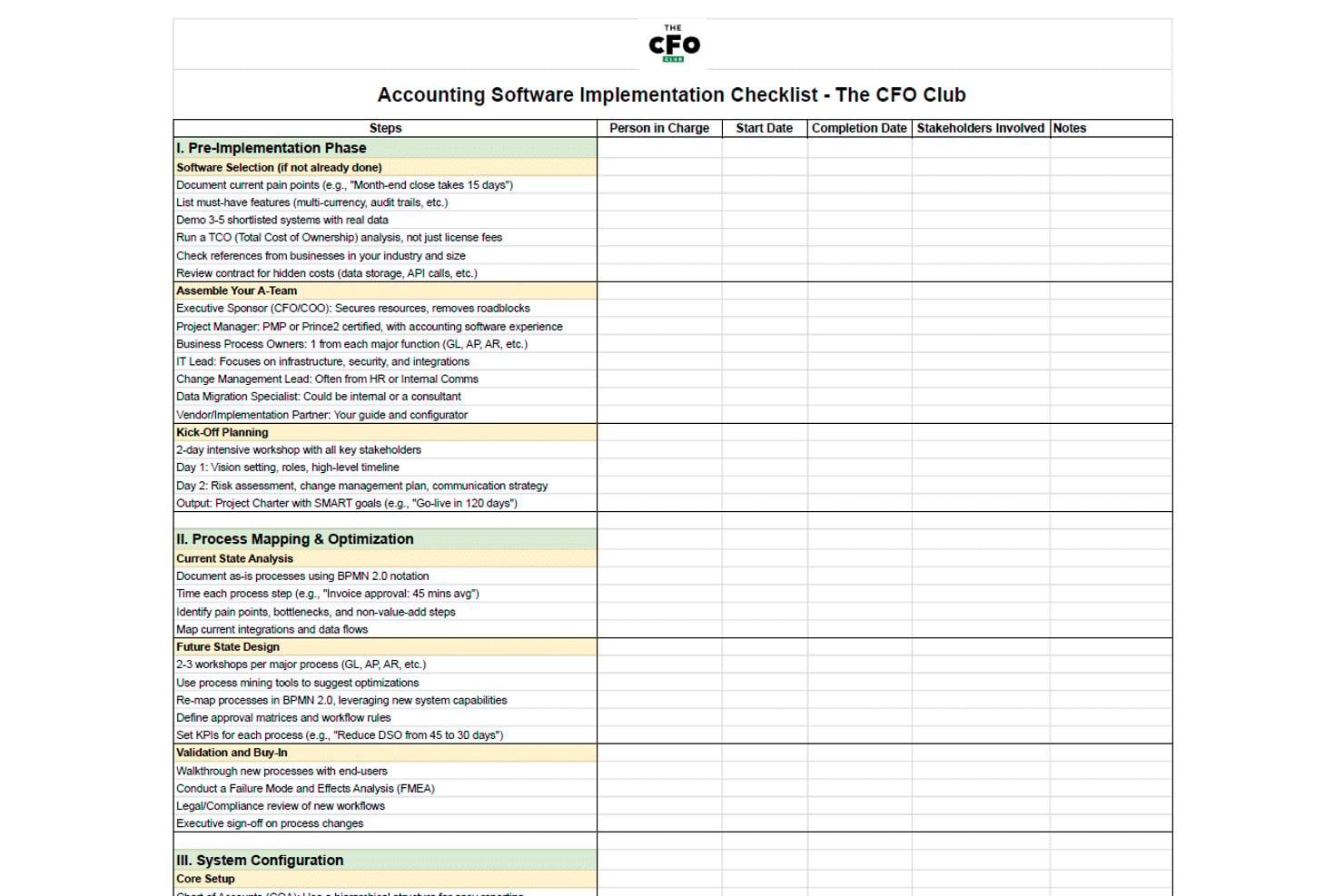
Start by naming a single project owner—someone accountable for decisions, not just progress updates. Without clear ownership, approvals stall and timelines slip before configuration even begins.
Pull in the right people early: your controller or CFO, at least one power user from each department that touches the system, and your IT lead. If you're working with a vendor or implementation partner, get them in the room during planning, not after.
Define your go-live date first, then build the phase timeline backward from it. I'd also recommend locking in a scope document that explicitly lists what's out of scope. Teams that skip this step spend weeks debating whether to include features mid-project.
Document who owns each decision—chart of accounts design, integration requirements, user access levels. Vague ownership is what turns a 90-day implementation into a 6-month one.
Before configuration starts, I document the operating rules that keep planning decisions from getting lost in informal conversations:
- Decision log: Record each open decision, its owner, approver, and due date.
- Capacity plan: Reserve time for finance, IT, and department representatives, and avoid scheduling major tasks during close.
- Dependency map: Note prerequisites such as data access, integration details, and vendor deliverables.
- Escalation route: Set a deadline for unresolved decisions and name the sponsor who can resolve them.
2. Business Process and Requirements Analysis
Map your current workflows before anyone touches the new system. Talk to the people who actually do the work—AP clerks, payroll admins, department managers—not just the finance leads. They'll surface the workarounds and edge cases your chart of accounts won't reflect.
Focus on documenting what your reporting actually needs to produce: tax filings, departmental budgets, consolidations. That output drives every configuration decision ahead.
Teams that skip this step often spend months trying to retrofit a system that was set up for someone else's business model. If a process is broken today, don't replicate it—use this phase to fix it before it gets baked into the new setup.
To turn those interviews into configuration requirements, document these details for each workflow:
- Starting point: Record what triggers the process, such as an approved purchase request or a completed sales order.
- Roles and handoffs: Note who prepares, reviews, approves, and posts each transaction.
- Inputs and outputs: List the documents, data, and reports the workflow uses or produces.
- Exceptions and controls: Capture common edge cases, approval limits, and checks that prevent errors.
- Reporting needs: Specify the dimensions and detail required, such as department, entity, project, or transaction-level data.
Have an account? Log In
3. Chart of Accounts and System Configuration
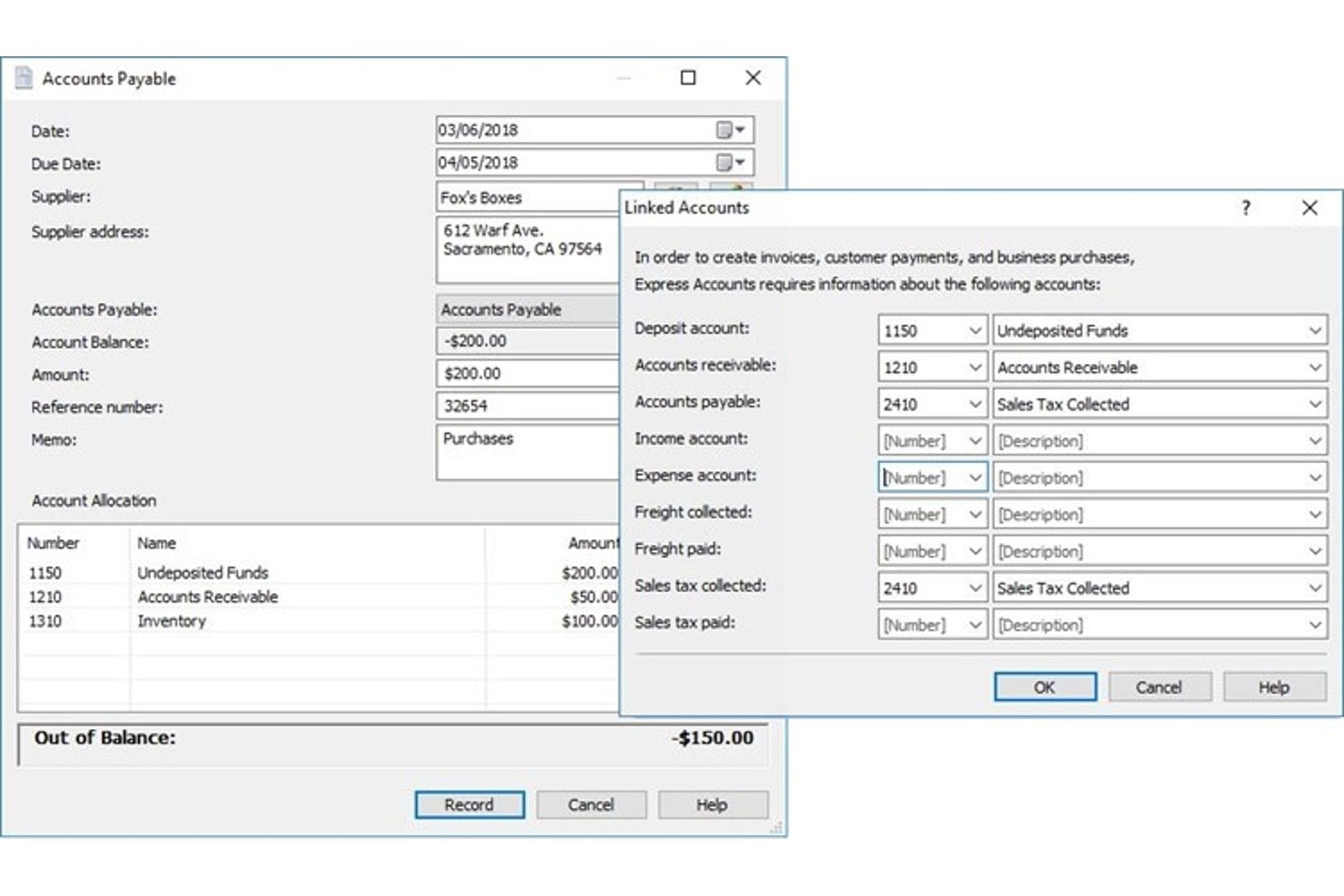
Design your chart of accounts before touching any configuration settings. Your COA structure drives every report you'll ever run, so get your controller and at least one department head in the room to validate it.
A common trap is copying your old COA directly into the new system—if your existing structure is cluttered with redundant accounts or lacks department-level segmentation, this phase is your chance to fix that.
Once the COA is finalized, configure your fiscal year, currency settings, approval workflows, and user permissions. Set up only what you need at go-live—don't pre-build modules or account segments you're speculating about.
Scope creep in configuration is what pushes timelines past the point of no return. Lock the COA structure before testing begins, because changes after that point ripple through every report and integration you've already validated.
Before you configure the system, use these checks to keep the structure useful for reporting and easier to maintain:
- Limit account detail: Create separate accounts only when they support distinct reporting or control needs.
- Use dimensions thoughtfully: Track departments, projects, or entities with system dimensions when available, rather than creating an account for every combination.
- Map legacy accounts: Document how each old account maps to the new structure, including any accounts you merge or retire.
- Test reporting paths: Confirm sample transactions appear correctly in financial statements and required management reports.
- Review access controls: Check that user roles and approval limits match the responsibilities documented during requirements analysis.
4. Third-Party System Integration Setup
Map every system that needs to connect with your accounting software before you build a single integration. Your ERP, payroll platform, CRM, and banking feeds all need to be accounted for—who owns the connection, what data flows in each direction, and how often it syncs.
Get your IT lead and the system owner for each connected platform involved early. Integration failures at go-live are almost always traced back to assumptions made without those people in the room. Confirm that field mappings, authentication credentials, and API access are ready before you begin testing.
Build and test one integration at a time, not all at once. Run transactions end-to-end and verify the data lands correctly on both sides. If a sync fails silently, you need to catch it in testing—not after your first close.
Before an integration is ready for production, use this checklist to catch gaps that a basic connection test can miss:
- Assign data authority: Identify which system owns each field, such as customer records, supplier details, or payment status.
- Plan for failures: Define how the team will detect errors, retry failed transfers, and handle transactions that need manual review.
- Prevent duplicate postings: Test how the integration handles repeated messages, partial transfers, and records that arrive out of order.
- Reconcile test results: Compare record counts and financial totals across both systems, including dates, currencies, and tax details.
- Document ongoing ownership: Record who monitors the connection, manages access changes, and responds when an API or vendor update affects the integration.
5. Data Cleansing and Migration Preparation
Before you move any data, audit what you actually have. Pull your full vendor list, customer records, open transactions, and historical balances—then work through them systematically.
Duplicate vendors, retired accounts with open balances, and inconsistent naming conventions will all follow you into the new system if you don't catch them here.
Your controller should own this phase, but the people who manage the data daily need to do the actual cleanup. AP clerks know which vendor records are duplicates. AR knows which customer accounts are stale.
Don't try to cleanse data in a spreadsheet without a clear field-by-field mapping to the new system's structure. Migrate a small test batch first, reconcile the totals, and confirm everything lands correctly before you move the full dataset.
Use this migration checklist to match each data set with the cleanup and reconciliation it needs:
| Data Set | Cleanup Checks | Mapping Decision | Validation |
|---|---|---|---|
| Data SetVendors and customers | Cleanup ChecksMerge duplicates; flag inactive records; standardize names and required fields | Mapping DecisionMatch legacy IDs and fields to the new system | ValidationCompare record counts and review sample records |
| Data SetChart of accounts | Cleanup ChecksIdentify duplicates, obsolete accounts, and accounts with open balances | Mapping DecisionDocument accounts to merge, retire, or map one-to-one | ValidationConfirm mapped balances by account |
| Data SetOpen transactions | Cleanup ChecksCheck status, dates, amounts, tax details, and linked records | Mapping DecisionMap transaction types and required dimensions | ValidationCompare transaction counts and totals |
| Data SetHistorical balances | Cleanup ChecksConfirm period, currency, entity, and sign conventions | Mapping DecisionSet the history to migrate and map each balance to the new structure | ValidationReconcile trial balance totals and investigate differences |
6. Data Migration and Validation
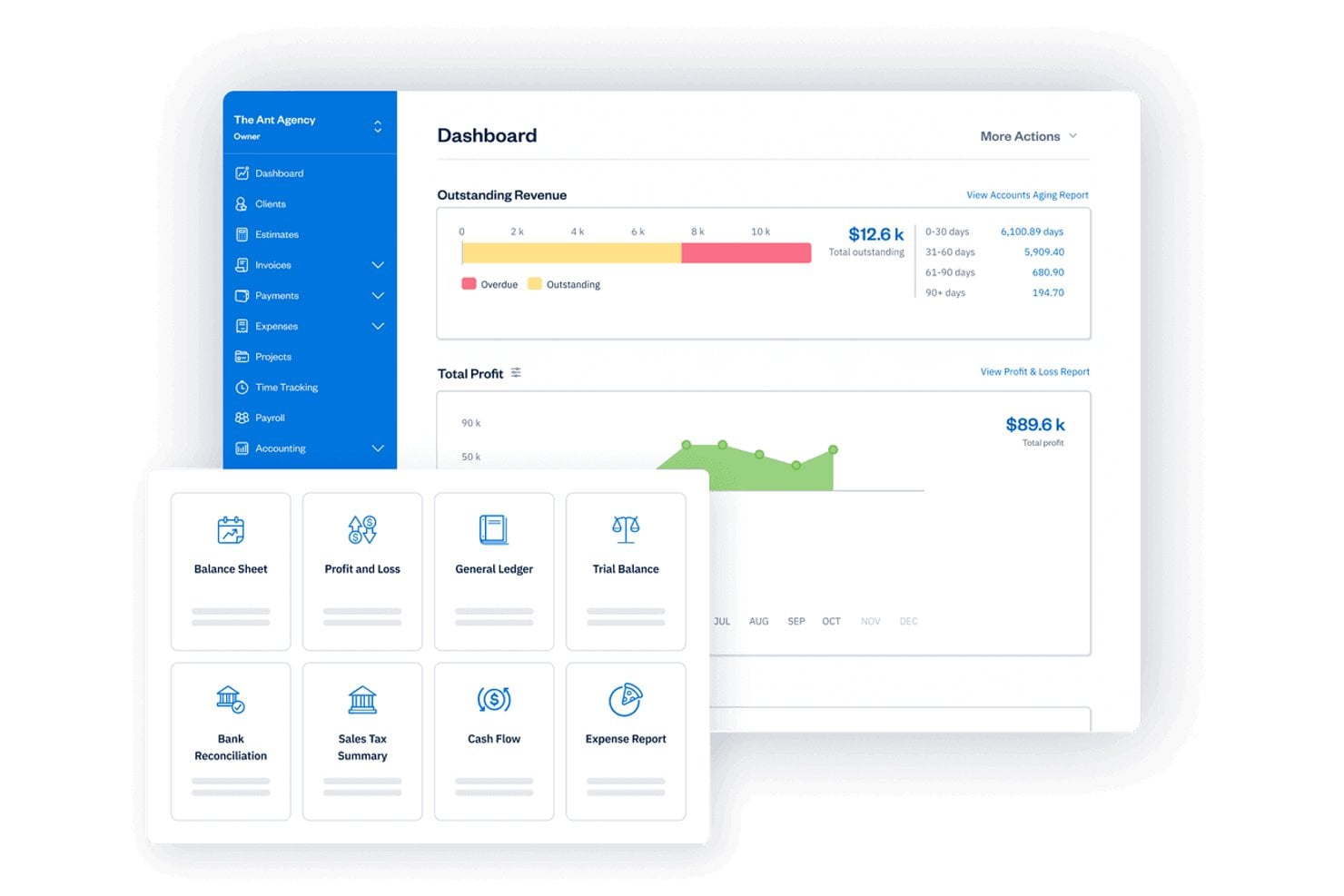
Run your first migration as a test, not the real thing. Load a small, representative batch—open invoices, a few vendor records, a trial balance segment—and reconcile the totals before you move anything else.
Your controller should sign off on each reconciliation, but the AP and AR clerks doing the daily work should verify the actual records. They'll catch what a balance check misses.
The most common place this breaks down is field mapping. A vendor payment term coded one way in your legacy system may land in the wrong field in the new one.
Audit the mapping documentation before the full migration runs, not after. Once you've migrated the complete dataset, compare record counts and financial totals side by side. Don't close out this phase until every discrepancy is explained and resolved.
Use this sequence to validate each migration run before releasing the data for live use:
- Capture the source: Save a dated export or report of the records and balances included in the run.
- Check the transfer: Compare source and destination record counts, totals, currencies, and accounting periods.
- Inspect transactions: Review sample invoices, payments, and journal entries for correct dates, tax details, account codes, and dimensions.
- Trace discrepancies: Identify whether each difference came from mapping, rejected records, duplicates, or timing, then correct and rerun affected data.
- Approve the results: Have the controller sign off on reconciliations and record unresolved issues before the next migration run.
7. User Acceptance Testing
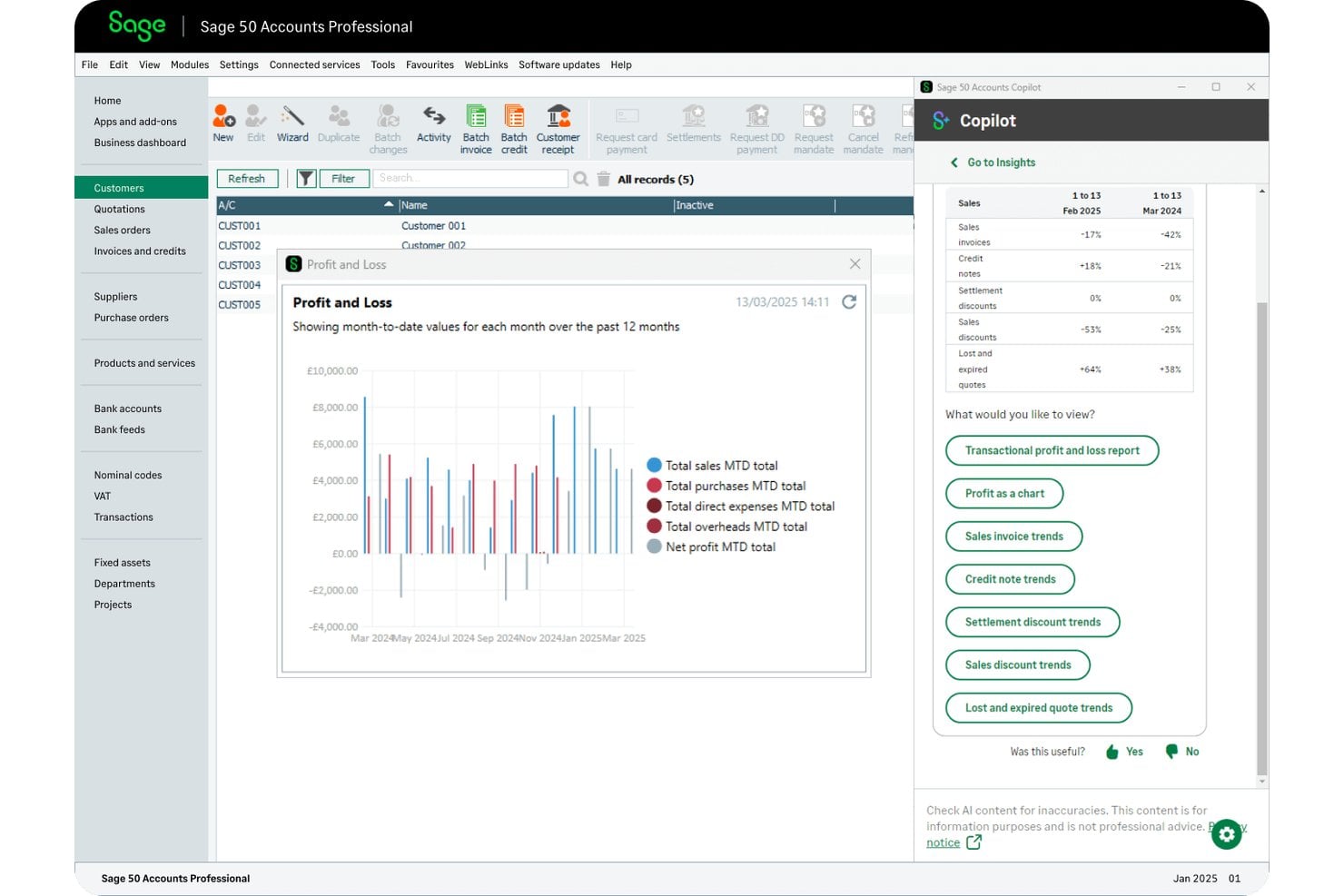
Put your actual end users in the driver's seat—not IT, not the implementation consultant. AP clerks should process invoices, payroll admins should run pay cycles, and managers should pull the reports they use every week. If they can't complete their core tasks without confusion, the system isn't ready.
Test against real scenarios, not demo data. Use your own vendors, your own account codes, and transactions that reflect your actual volume and complexity. Pay close attention to approval workflows and permission boundaries—these are where most surprises surface.
Document every issue with enough detail to reproduce it, and track resolutions before you sign off. Don't move to go-live until the people doing the daily work confirm the system handles their jobs correctly.
Use these steps to test accounting workflows with the people who’ll run them after go-live:
- Choose real scenarios: Select routine and exception cases, such as an invoice with a purchase order, a rejected approval, and a payment run.
- Test by role: Have each user complete assigned tasks with their own permissions, then confirm they can access only appropriate records and actions.
- Check the accounting result: Verify dates, account codes, dimensions, tax details, approval history, and resulting entries or reports.
- Record defects clearly: Note the steps, expected result, actual result, and affected transaction so the team can reproduce each issue.
- Retest and approve: Repeat failed scenarios after fixes, then document user sign-off and any unresolved issues before go-live.
8. Staff Training and Change Management
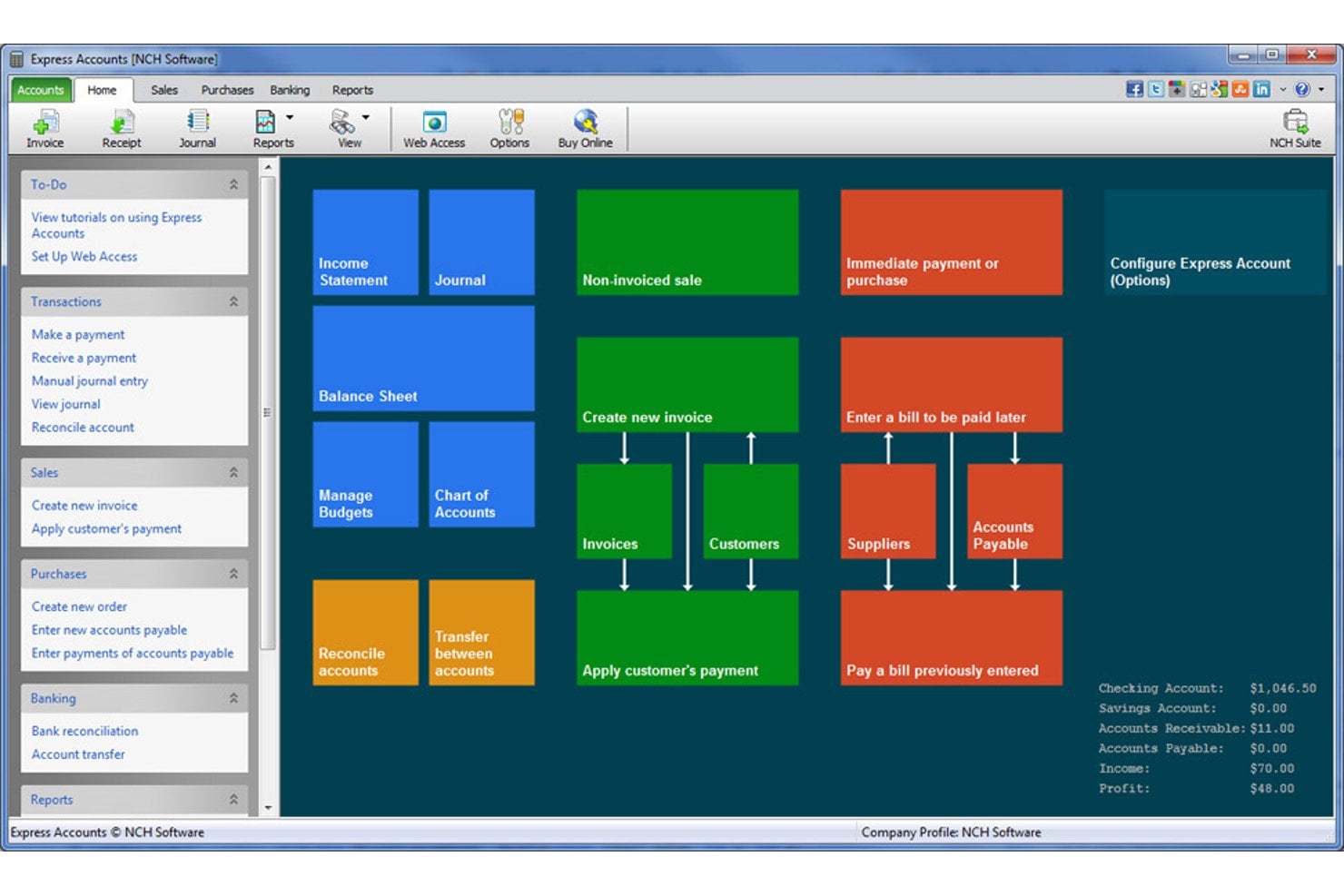
Training works best when it's role-specific. Don't run the same session for AP clerks and department managers—their workflows are completely different. Build training around the actual tasks each person will do on day one.
Resistance to a new system usually comes from people who weren't involved in the process and don't understand why the change is happening. Communicate early and often. Let users know what's changing, what's staying the same, and where they can get help after go-live.
Designate a few power users in each department to serve as first-line support. They reduce helpdesk volume and build confidence faster than any formal training session will.
After go-live, track which tasks generate the most questions or errors—that's where your training gaps are. Address them quickly before bad habits take hold.
Match training to the work each group performs, then assign clear support after launch:
| Group | Training Focus | Follow-Up |
|---|---|---|
| GroupAP and AR staff | Training FocusInvoice entry, approvals, payment processing, and customer receipts | Follow-UpPractice exceptions and confirm where to escalate issues |
| GroupPayroll administrators | Training FocusPay-cycle steps, approval controls, and payroll-to-ledger checks | Follow-UpRehearse a full cycle with test data |
| GroupManagers | Training FocusBudget views, expense approvals, and routine reports | Follow-UpProvide quick guides for recurring tasks |
| GroupDepartment power users | Training FocusCommon workflows, troubleshooting, and support boundaries | Follow-UpSet regular check-ins to share recurring questions with the implementation team |
9. Go-Live and System Cutover
Pick a cutover date that gives your team breathing room—avoid month-end, quarter-end, or any period where your close cycle is already under pressure.
On the day you switch over, freeze transactions in the old system before opening them in the new one. Even a short overlap creates reconciliation problems that are tedious to untangle.
Your controller, IT lead, and department power users should all be available during the first 48 hours. Issues will surface, and you need people who can distinguish a configuration fix from a training gap. Post a short, clear list of who to contact for each type of problem so staff aren't guessing.
Run your first real transactions slowly and verify each one. Don't assume the live environment behaves exactly like your test environment—confirm it does before volume picks up.
Use this cutover sequence to control the switch and verify the first live activity:
- Confirm readiness: Check that user access, opening balances, approval routes, and support contacts are in place before the cutover date.
- Set the transaction boundary: Tell staff when to stop entering transactions in the old system, and confirm the final entries are recorded.
- Capture the handoff: Save the final source reports and note the date, time, and transactions included in the transfer.
- Verify live activity: Process a small number of real transactions, then check their approvals, account coding, and ledger impact.
- Escalate issues: Assign an owner and response path for each issue, and pause further processing if balances or posting behavior don’t match expectations.
10. Post-Implementation Support and Optimization
The work doesn't stop at go-live. Spend the first 30 to 60 days watching where users slow down, make errors, or raise the same questions repeatedly. Those patterns tell you where the configuration needs adjustment or where training fell short.
Keep your power users active and visible during this window. They're your fastest feedback loop. Schedule a brief check-in at the 30-day mark with your controller and department leads to review any open issues, assess whether workflows are performing as expected, and prioritize fixes.
Avoid letting small frustrations settle into workarounds—bad habits compound quickly. If a report isn't pulling the right data or an approval route is generating exceptions, address it now before it becomes the default way people operate.
Use these practices to turn early user feedback into targeted fixes and clearer support:
- Track recurring friction: Log repeated questions, errors, and delays by task so you can distinguish training gaps from configuration issues.
- Assign clear ownership: Route each issue to a power user, department lead, or implementation contact, with a response target and escalation path.
- Prioritize by impact: Address problems that affect posting accuracy, approvals, or reporting before minor interface preferences.
- Verify each change: Test fixes with affected users, confirm accounting results, and update guides before changing the workflow for everyone.
More Articles
Top Accounting Software to Consider
Here's my shortlist of the best accounting software solutions: QuickBooks Online, Xero, Sage Intacct, NetSuite, Zoho Books, and FreshBooks.
- 8. Reckon One
Best Practices for a Successful Accounting Software Implementation
User reviews and implementation surveys repeatedly flag migration gaps, integration problems, reporting limits, and steep learning curves. Use these safeguards to catch issues before they affect live accounting data:
| Don’ts | Instead, Do: |
|---|---|
| Don’tsAssume a data import includes every transaction, balance, currency, and dimension | Instead, Do:Reconcile source and destination counts, totals, currencies, and accounting periods, then trace and correct differences before release |
| Don’tsMove historical data without confirming which details and reports your team needs | Instead, Do:Test a representative migration and verify transaction-level detail, opening balances, and required reports with finance users |
| Don’tsAssume bank feeds, payroll, tax, or other integrations will work as expected | Instead, Do:Test each required connection with realistic transactions and confirm how errors, duplicate entries, and failed syncs appear |
| Don’tsLeave custom reports and account dimensions until after setup | Instead, Do:Build and validate key close, cash flow, and management reports with your actual chart of accounts and reporting needs |
| Don’tsUnderestimate setup time, migration fees, training, or extra configuration | Instead, Do:Confirm scope, responsibilities, costs, and milestones with the provider, and reserve time for testing and corrections |
| Don’tsLet IT or the implementation consultant approve workflows without end users | Instead, Do:Have staff test routine and exception cases by role, then document defects, retest fixes, and record user sign-off |
| Don’tsCut over while staff can still enter transactions in both systems | Instead, Do:Set a clear transaction cutoff, capture final source reports, and verify the first live entries before increasing volume |
Implementation Is Just the Beginning
Once your system is live and your team is up and running, the next challenge is making sure all your tools work together—so take a closer look at accounting software integrations to understand how to connect your new platform with payroll, CRM, payment processing, and other systems your finance team relies on.